
A hacked WordPress Website doesn’t always announce itself. Many of the most damaging attacks are designed to be invisible, silently redirecting visitors, injecting spam links that only search engines see, or installing backdoors that survive even a full Website reinstall. By the time the symptoms are obvious, significant damage is often already done.
The good news: there are reliable warning signs. If you know what to look for, you can catch a compromise early, before it destroys your search rankings, your user data, or your business reputation. This guide covers the 10 most common signs of a hacked WordPress site and the exact steps to take when you suspect a breach.
KEY SECURITY STATISTICS — 2026
- 13,000 WordPress Website are hacked every single day — roughly 4.7 million per year (Patchstack, 2026)
- The median time from vulnerability disclosure to mass exploitation: just 5 hours (Patchstack, 2026)
- 43% of exploitable vulnerabilities in 2025 required no authentication — attackers don’t need your password
- Wordfence blocks over 6.4 billion brute force attacks every month across its network
- Only 27% of site owners have any breach recovery plan in place
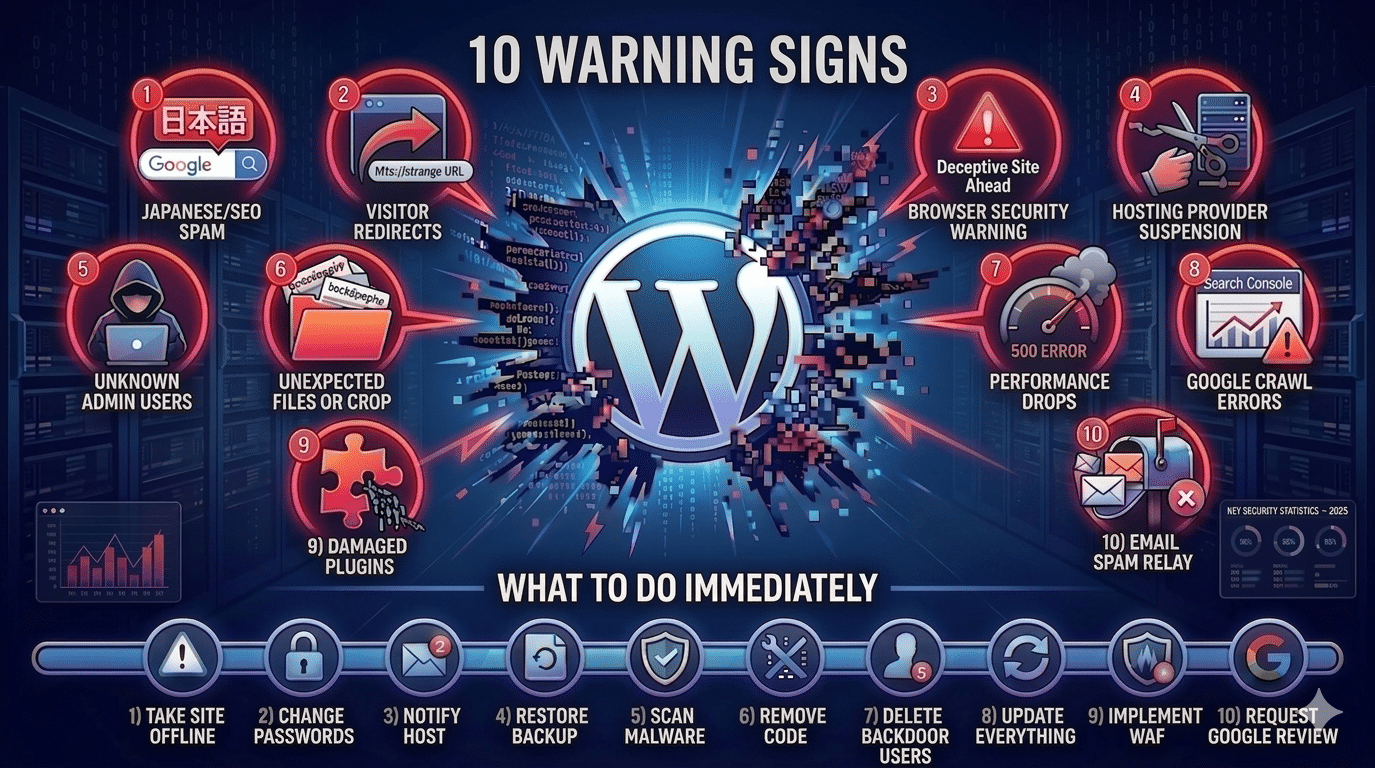
The 10 Warning Signs Your WordPress Website Has Been Hacked
Sign 1 — Your Google Search Results Show Strange Content
One of the most common and damaging hacks is Japanese SEO spam, a family of attacks that injects keyword-stuffed content into your Website to manipulate search rankings for unrelated keywords. You might see your Website appearing in Google results for Japanese gambling terms, pharma keywords, or adult content.
Check by searching Google for: site:yourdomain.com , and look for any pages in the results that shouldn’t exist or show strange titles and descriptions. These attacks are designed to show normal content to site owners while serving spam content to search engines, so viewing your own site may look completely normal.
- Check your Google Search Console > Coverage report for any URLs that don't belong to your site. Also check Performance > Pages for a sudden appearance of URLs you don't recognise.
Sign 2 — Visitors Are Being Redirected to Unknown Website
Redirect malware sends your visitors to pharmaceutical websites, adult content, gambling websites, or phishing pages, but often only if they arrived from a search engine, or only on mobile devices, or only on their first visit. As the Website owner, visiting your own site directly, you might see nothing wrong.
Test this by Googling your site and clicking the result (not typing the URL directly). Check your site on a mobile device you haven’t visited before. Use an incognito/private browser window to simulate a first-time visitor.
Sign 3 — Your Website Triggers a Browser Security Warning
If Google Chrome shows a red ‘Deceptive Website ahead’ warning or Firefox shows ‘This website might be trying to impersonate a safe site’, Google’s Safe Browsing database has flagged your site as dangerous. This typically means malware has been detected.
Check your Website’s status at: google.com/transparencyreport/safebrowsing/diagnostic/?site=yourdomain.com, this shows whether Google currently considers your site unsafe.
Sign 4 — Your Hosting Provider Suspended Your Account
Many hosting providers scan hosted Websites for malware and automatically suspend accounts when they detect it. A sudden Website suspension, especially accompanied by an email from your host mentioning ‘malicious files’ or ‘policy violation’, is a strong signal of a successful breach.
Contact your host immediately. Ask them specifically which files were flagged and why the account was suspended. This information is critical for understanding the scope of the compromise.
Sign 5 — Unknown Admin Users Appear in Your WordPress Dashboard
If you see user accounts you don’t recognise in Users > All Users, your Website has almost certainly been compromised. Attackers create admin-level users to maintain persistent access even after you clean infected files. These backdoor accounts survive most cleanup attempts.
Check this immediately: WordPress admin > Users > All Users. Look for any account you didn’t create. Also check for existing accounts with recently changed email addresses or passwords, these indicate an attacker has taken over a legitimate account.
Sign 6 — Unexpected Files or Code Appear in Your WordPress Directory
Attackers inject malicious PHP files into your WordPress installation, often in /wp-content/uploads/ (a directory that typically has write permissions), in plugin folders, or in the root directory. These files have names designed to look like legitimate WordPress files.
Common malicious filenames: wp-loginn.php, wp-updater.php, hello.php (in the root), or files with seemingly random names like k3h74g.php. Any PHP file in /wp-content/uploads/ is suspicious, this directory should contain only media files.
Sign 7 — Your Website's Performance Drops Dramatically
Actually, a sudden, unexplained drop in page load speed can indicate cryptomining malware, malicious code running on your server that uses your hosting resources to mine cryptocurrency for attackers. This consumes CPU and memory, causing your pages to load slowly and your server to throw 500 errors.
Check your hosting control panel’s resource usage dashboard. A sustained high CPU load that you can’t explain through traffic increases is a serious warning sign.
Sign 8 — Google Search Console Reports Crawl Errors or Manual Actions
Log into Google Search Console and check: Security & Manual Actions > Security Issues. If Google’s crawlers have detected malware or spam on your Website, there will be a notification here with details of the specific issue found.
Also check your Core Web Vitals and Coverage reports for sudden drops or spikes in error pages, these can indicate malware that’s redirecting or blocking Google’s crawler from accessing normal pages.
Sign 9 — Legitimate Plugins or Themes Are Behaving Unexpectedly
Many sophisticated attacks target legitimate plugins, injecting malicious code into plugin files rather than creating new files, making detection much harder. If a plugin you’ve used for years suddenly starts producing errors, loading external scripts, or behaving differently after an update, investigate carefully.
Run a file integrity check with Wordfence (Scan > Scan Results > Modified Core Files) to detect any WordPress core or plugin files that have been altered from their original versions.
Sign 10 — Emails From Your Website Are Going to Spam or Being Blocked
Attackers often use compromised WordPress installations as spam relay servers, sending thousands of spam emails through your hosting account. If contact form confirmations stop arriving, legitimate emails are going to spam, or your hosting provider warns you about outgoing email volume, your Website may be being used as a spam server.
Check your hosting control panel’s email logs (available in cPanel or Plesk). A volume of outgoing emails far exceeding what your Website’s contact forms would explain is a clear indicator.
What to Do Immediately If Your WordPress Website Is Hacked
| # | Action | How to Do It |
|---|---|---|
| 01 | Take the site offline | Put your site in maintenance mode or temporarily redirect to a static page. This stops damage from spreading to visitors. Don’t delete anything yet — you need the evidence. |
| 02 | Change all passwords immediately | Change: WordPress admin passwords for all accounts, hosting control panel password, database password (requires updating wp-config.php), FTP/SFTP passwords, email accounts associated with the domain. |
| 03 | Notify your host | Tell your hosting provider you suspect a breach. They may have security logs, server-level malware detection, and can isolate your account to prevent spread to other hosted sites. |
| 04 | Restore from a clean backup | If you have a recent backup from before the compromise, restore it. This is the fastest path to a clean site. Verify the backup predates the attack — backdoors may exist in backups that were made after the initial breach. |
| 05 | Scan with Wordfence or Sucuri | Run a full malware scan. Wordfence’s scanner checks all files against known clean versions. Sucuri SiteCheck (sitecheck.sucuri.net) provides an external scan. Both approaches are needed — internal scans miss memory-resident malware. |
| 06 | Remove malicious code and files | Delete any files the scanner identifies as malicious. Reinstall WordPress core from a fresh download. Reinstall all plugins from the WordPress.org directory. Replace theme files from the original developer’s zip file. |
| 07 | Check and remove backdoor users | Go to Users > All Users and delete any accounts you don’t recognise. Also check the database directly (via phpMyAdmin) for admin users that may not appear in the WordPress dashboard. |
| 08 | Update everything | After cleaning: update WordPress core, all plugins, all themes to the latest versions. Delete any inactive plugins or themes — they are attack vectors even when deactivated. |
| 09 | Implement a WAF | Install Wordfence or Cloudflare’s WAF to prevent reinfection. A firewall blocks malicious requests before they reach WordPress. A cleaned site without a firewall will typically be reinfected within days. |
| 10 | Request Google review | If your site was flagged by Google Safe Browsing: Google Search Console > Security Issues > Request Review. This removes the security warning from search results once Google confirms the site is clean. |
- If the same malware reappears after you've cleaned it, there is a persistent backdoor on your server that survived the cleanup. This is a sign of a sophisticated attack, particularly the Lock360 malware family that rewrites malicious code from server memory. In this case, you need a complete server migration to a fresh environment — not another cleanup of the existing server.
We Set Up WordPress Security Before Your Website Gets Hacked
Hopeleaf Technologies configures Wordfence, changes login URLs, enforces 2FA, sets up daily offsite backups, and monitors uptime on every WordPress Website we build. Prevention is cheaper than recovery.
- Ask about our WordPress maintenance plans → hopeleaftechnologies.com/contact-us/
We Build Every Site in Elementor Pro
Hopeleaf Technologies is a specialist Elementor agency — we design in Figma and build in Elementor Pro on WordPress. Fast, editable, and built to rank on Google.