
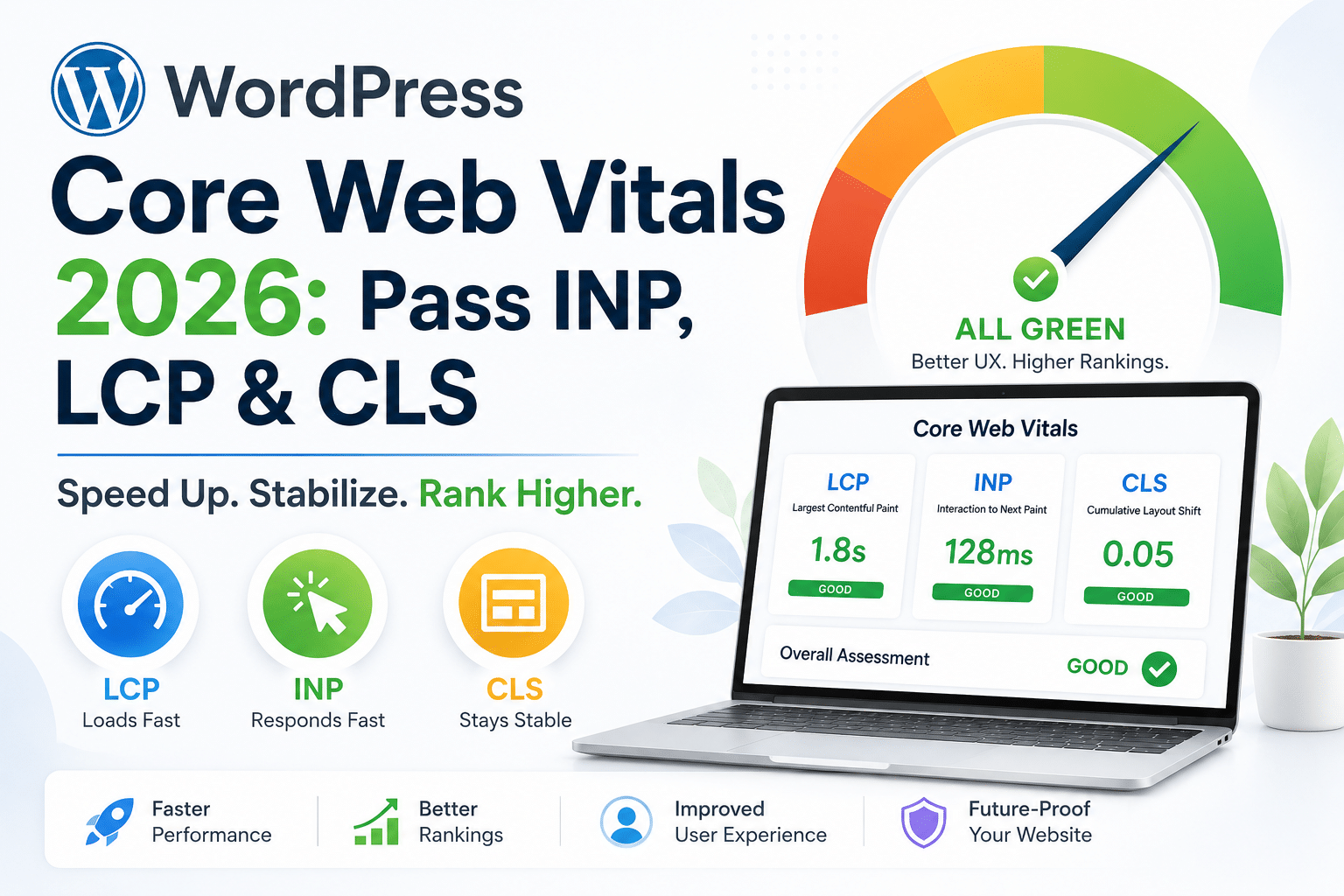
Google replaced FID (First Input Delay) with INP (Interaction to Next Paint) as a Core Web Vitals in March 2024. Eighteen months later, many WordPress sites still haven’t adapted. If your site is failing WordPress Core Web Vitals in 2026, INP is almost certainly the metric holding you back — and it requires different fixes than the performance optimisations you may have already applied.
In 2026, 40.2% of WordPress sites pass all Core Web Vitals on mobile. That means nearly 60% are still failing — even after years of Google signalling that these metrics directly influence rankings. This guide gives you the specific, actionable fixes for all three metrics, with particular attention to INP.
The Three WordPress Core Web Vitals — What You're Being Measured On
| Metric | Full Form | What It Measures | Good | Needs Improvement | Poor |
|---|---|---|---|---|---|
| LCP | Largest Contentful Paint | How fast the hero image/text loads | < 2.5s | 2.5s – 4.0s | > 4.0s |
| INP | Interaction to Next Paint | Response speed to clicks and taps | < 200ms | 200ms – 500ms | > 500ms |
| CLS | Cumulative Layout Shift | Visual stability — does content jump? | < 0.1 | 0.1 – 0.25 | > 0.25 |
Fixing INP — The Newest and Most Misunderstood Metric
INP measures how quickly your page visually responds to every user interaction — every click, every tap, every keypress. If a user clicks a menu item and the menu takes 400ms to respond, that’s an INP problem. FID (the old metric) only measured the first interaction. INP measures all of them throughout the entire page visit and uses the worst one as your score.
Most WordPress sites struggle with INP because of JavaScript — specifically, large scripts that block the browser’s main thread and delay its ability to respond to user inputs.
INP Fix 1 — Defer Non-Critical JavaScript
The most common INP culprit is JavaScript loaded synchronously that blocks the main thread. Google Tag Manager, Facebook Pixel, chat widgets, and analytics scripts are frequent offenders.
Install WP Rocket and enable Delay JavaScript Execution. This defers non-critical scripts until after the user first interacts with the page. Exclude from deferral: scripts needed for menus, sliders, or above-fold interactivity. Test after enabling — some scripts need exclusion to avoid breaking functionality.
INP Fix 2 — Enable Elementor's Optimized DOM Output
Elementor’s default markup generates a large number of wrapper div elements that the browser must parse and respond to. Enabling Optimized DOM Output in Elementor’s Experiments panel reduces the DOM node count by 30–50%, which directly improves the browser’s main thread availability — and therefore your INP score.
Go to: Elementor > Settings > Experiments > Optimized DOM Output > Enable. Test on staging first.
INP Fix 3 — Remove Heavy Third-Party Scripts
Each third-party script added to your WordPress site — live chat widgets, marketing automation trackers, A/B testing tools, video embed players — adds main thread blocking time. Audit all third-party scripts on your site using Chrome DevTools > Performance tab. Remove any script that isn’t actively contributing to business goals.
- A live chat widget you haven't checked in six months is likely adding 200–400ms of main thread blocking time on every page. Remove it or replace with an async-loading alternative.
Fixing LCP — Getting Your Hero to Load Fast
LCP (Largest Contentful Paint) measures how long it takes for the biggest visible element — usually your hero image or headline — to load. A hero image that takes 4 seconds to appear is a failing LCP score.
LCP Fix 1 — Preload Your Hero Image
The most impactful LCP fix is adding fetchpriority=’high’ and loading=’eager’ to your hero image. In Elementor, set the hero background image’s loading attribute to eager and add a preload link in your theme’s head. Never lazy-load your hero image — lazy loading defers image loading until the element is visible, which is exactly what you don’t want for LCP.
LCP Fix 2 — Convert Hero Images to WebP Under 100KB
A 2MB JPEG hero image will fail LCP every time, regardless of what else you optimise. Convert all hero images to WebP format and target under 100KB. Use ShortPixel or Imagify to compress automatically on upload. Resize hero images to maximum 1440px wide before uploading — there’s no reason to serve a 4000px image to a 1440px screen.
LCP Fix 3 — Choose Fast Hosting
Your TTFB (Time to First Byte) — the time before your server sends any response — determines a significant portion of your LCP score. On shared hosting, TTFB is often 800ms–1500ms before a single byte of your page has been sent. On managed WordPress hosting (SiteGround GoGeek, Kinsta, Cloudways), TTFB typically drops to 100–300ms. No amount of caching fully compensates for bad hosting.
Fixing CLS — Stopping Content from Jumping
CLS (Cumulative Layout Shift) measures how much the page visually shifts as it loads. A page that loads content in stages — where images pop in without reserved space, causing text to jump around — gets a high CLS score. A high CLS score means a poor user experience and a ranking penalty.
CLS Fix 1 — Set Explicit Width and Height on All Images
Every image on your WordPress site should have explicit width and height attributes. Without these, the browser doesn’t know how much space to reserve for the image before it loads, and the surrounding content shifts when it appears. In Elementor, always set image dimensions in the Image widget’s Style settings.
CLS Fix 2 — Avoid Late-Loading Embeds
Google Ads, YouTube embeds, social media feed widgets, and late-loading advertising banners all cause CLS because they push content down when they render. Use a fixed-size container (a div with a defined height) as a placeholder for any embed that loads asynchronously. This reserves the space before the embed loads, preventing layout shift.
CLS Fix 3 — Use System Fonts or Preload Custom Fonts
Custom web fonts that load late cause text layout shift — your content renders first in a fallback font, then re-renders in the custom font, causing a shift. Either preload your font files in the head of your WordPress theme, or use font-display: optional in your CSS to suppress the swap-induced shift. In Elementor, go to Site Settings > Typography and select your fonts — Elementor handles font loading, but confirm preloading is enabled in your caching plugin.
Core Web Vitals Checklist for WordPress Sites in 2026
- Host on managed WordPress hosting or VPS — not shared hosting
- Install WP Rocket and enable Delay JavaScript Execution, CSS/JS minification, and page caching
- Convert all images to WebP — ShortPixel or Imagify, max 100KB for hero images
- Add fetchpriority=’high’ and loading=’eager’ to hero images — never lazy-load the LCP element
- Enable Elementor Optimized DOM Output and Improved Asset Loading in Experiments
- Set explicit width and height on every image in Elementor
- Add Cloudflare free CDN and enable Brotli compression
- Audit and remove unused third-party scripts — every one adds main thread blocking time
- Test with Google PageSpeed Insights and GTmetrix after each change — aim for all three vitals green on mobile
- Check your Core Web Vitals in Google Search Console under Experience > Core Web Vitals. The report shows which specific URLs are failing and which metric is responsible — start with the pages that get the most traffic.
Every WordPress Site We Build Launches with Core Web Vitals Passing
Hopeleaf Technologies configures WP Rocket, WebP images, Cloudflare CDN, and Elementor performance experiments on every project. We run GTmetrix and Google PageSpeed Insights audits before launch — not after.
- Get a free Core Web Vitals audit → hopeleaftechnologies.com/contact-us/
We Build Every Site in Elementor Pro
Hopeleaf Technologies is a specialist Elementor agency — we design in Figma and build in Elementor Pro on WordPress. Fast, editable, and built to rank on Google.