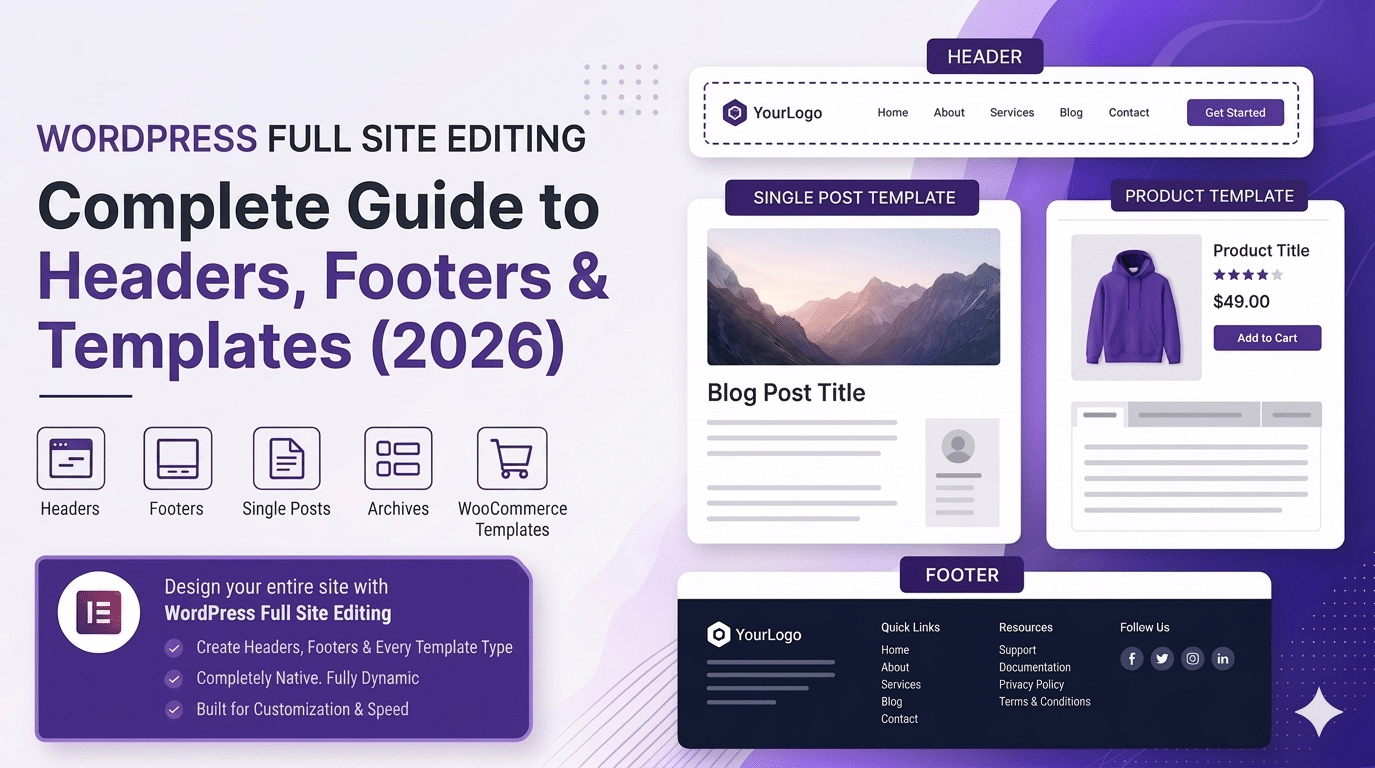
The Elementor theme Free lets you design page content. Elementor theme Pro’s Theme Builder lets you design the entire WordPress site, header, footer, every page type, and every template. If you’ve ever wanted your blog single posts to look different from your standard pages, or your WooCommerce product pages to be fully branded, Theme Builder is how you do it.
This guide covers every Template Type in Elementor’s Theme Builder and how to set display conditions so the right template appears on the right pages.
Understanding Theme Builder Template Types
| Template Type | What It Controls | Applied Using Display Conditions |
|---|---|---|
| Header | Top navigation on every page | Entire site, specific pages, or specific CPTs |
| Footer | Bottom of every page | Entire site, specific pages |
| Single | Individual post/page layout | All posts, specific post type, specific post |
| Archive | Blog archive, category, tag pages | All archives, specific archive type |
| Search Results | Search results page layout | Search results globally |
| 404 Page | Custom not-found page | 404 globally |
| Product (WC) | WooCommerce single product page | All products, specific products/categories |
| Product Archive | WooCommerce shop/category listing pages | Shop page, product categories |
Building a Custom Header — Step by Step
Step 1 — Create the Header Template
Go to Templates > Theme Builder > Header > Add New. Choose a blank canvas or start from a template. Design your header using Elementor theme widgets: Site Logo widget for the logo, Nav Menu widget for navigation, and any other elements (phone number, social icons, CTA button). Use the Hello Theme (Elementor theme free companion theme) as the base; it’s under 30KB and has no visual styling that conflicts with your header design.
Step 2 — Make the Header Sticky
Click the header section, go to Advanced > Motion Effects > Sticky. Set to Top. The header will now stick to the top of the browser as the user scrolls. For a transparent-to-solid header (transparent over the hero, solid after scroll), use the Sticky > Sticky On Scroll setting combined with a transparent initial background and an Elementor theme Custom CSS rule on scroll.
Step 3 — Set Display Conditions
Click Publish, then choose Display Conditions. Choose ‘Entire Site’ to apply this header everywhere. You can also limit it to specific page types, for example, use a different header on WooCommerce product pages, or hide the header entirely on landing pages by setting Canvas mode on those individual pages.
Building a Custom Single Post Template
A Single template controls the layout of every individual blog post. Without a custom Single template, WordPress uses your theme’s default post layout, which may not match your Elementor theme design aesthetic.
Go to Templates > Theme Builder > Single > Add New. In the editor, use Elementor theme Dynamic Content widgets to pull post data: Post Title (Heading widget with Dynamic source = Post Title), Post Content (Shortcode or Post Content widget), Featured Image (Image widget with Dynamic source = Featured Image), Author Box, Comments widget.
This template applies automatically to every blog post on your site, you only design it once.
WooCommerce Product Page Template
The Product template is what most e-commerce clients need most. The truth is, the default WooCommerce product page is functional but visually generic. A custom Product template in Elementor theme Pro lets you design exactly how each product appears, gallery position, add-to-cart placement, tabs, and related products.
Use Elementor theme WooCommerce widgets: Product Images, Product Title, Product Rating, Product Price, Add to Cart, Product Tabs, Related Products. Arrange them in any Elementor layout you choose, the Dynamic Content system pulls the correct data for each product automatically.
Pro Tips for Theme Builder
- Always save before switching templates — Theme Builder has no auto-save
- Create a separate Header for mobile if your desktop header is too complex to compress
- Use Global Colours and Global Fonts in all templates — changes update everywhere instantly
- Set the 404 template early — a branded 404 page is better than a generic WordPress error
- Preview templates by clicking the eye icon before publishing — check on desktop and mobile
We Build Complete Elementor Theme Builder Setups on Every Project
Header, footer, single post template, archive template, and WooCommerce product pages — all designed in Elementor theme Pro and configured correctly. Included on every Hopeleaf build.
- Talk to us → hopeleaftechnologies.com/contact-us/
We Build Every Site in Elementor Pro
Hopeleaf Technologies is a specialist Elementor agency — we design in Figma and build in Elementor Pro on WordPress. Fast, editable, and built to rank on Google.