
WordPress has two native content types: Posts and Pages. Posts are for blog content — chronological, tagged, categorised. Pages are for static content — About Us, Contact, Services. Most beginners use them for everything, and it works fine for simple sites.
But what if you’re building a real estate site with property listings? A portfolio site with project case studies? A restaurant site with a menu? A job board with open positions? Forcing these into ‘Posts’ or ‘Pages’ is like using a spreadsheet for a database — it technically works until it doesn’t.
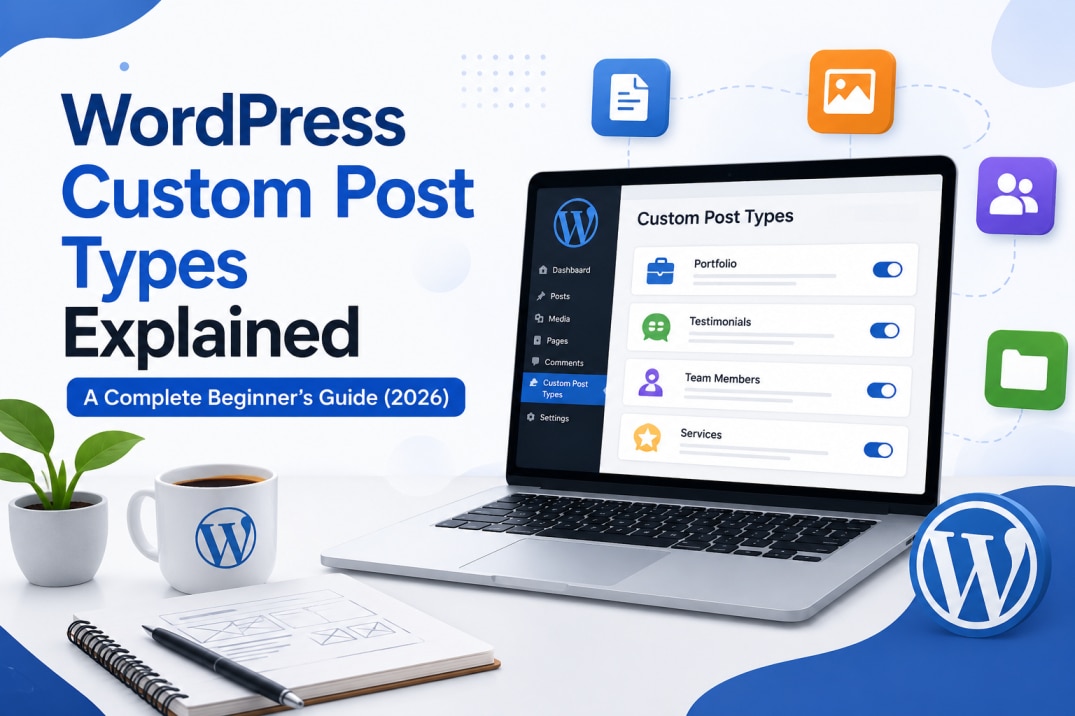
Custom Post Types (CPTs) are WordPress’s solution. They’re custom content types with their own structure, fields, and display templates — separate from your blog posts and static pages. This guide explains what they are, when to use them, and how to display them beautifully in Elementor Pro.
What Are Custom Post Types?
A Custom Post Type is simply a content type you define yourself in WordPress. It has its own admin menu item, its own content fields, its own archive page, and its own single-item template. Just like Posts have the Blog archive and single Post view, your custom Portfolio post type would have a Portfolio archive and single Project view.
| Use Case | Custom Post Type Name | Archive URL | Single Item URL |
|---|---|---|---|
| Portfolio site | Projects | /projects/ | /projects/website-name/ |
| Real estate | Properties | /properties/ | /properties/3bhk-surat/ |
| Restaurant menu | Menu Items | /menu/ | /menu/paneer-tikka/ |
| Team members | Team | /team/ | /team/jaimish-saliya/ |
| Job listings | Jobs | /careers/ | /careers/elementor-designer/ |
| Events | Events | /events/ | /events/wordpress-meetup-surat/ |
| Client projects | Portfolio | /work/ | /work/eco-hair-studio/ |
How to Create a Custom Post Type — Two Methods
Method 1 — CPT UI Plugin (Recommended for Beginners)
CPT UI (Custom Post Type UI) is a free WordPress plugin that lets you create and manage custom post types and taxonomies through a visual interface — no code required.
- Install CPT UI from Plugins > Add New (search ‘CPT UI’)
- Go to CPT UI > Add/Edit Post Types in your admin menu
- Set: Post Type Slug (e.g., ‘projects’), Plural Label (Projects), Singular Label (Project)
- Under Settings, enable: Has Archive, Publicly Queryable, Show in REST API
- Under Supports, enable: Title, Editor, Thumbnail (Featured Image), Custom Fields
- Click Add Post Type — your CPT is now available under the admin menu
Method 2 — Code in functions.php
For developers who prefer clean code without an extra plugin:
					 add_action( 'init', function() {

      register_post_type( 'projects', [

        'labels'        => [ 'name' => 'Projects', 'singular_name' => 'Project' ],

        'public'        => true,

        'has_archive'   => true,

        'show_in_rest'  => true,

        'supports'      => [ 'title', 'editor', 'thumbnail', 'custom-fields' ],

        'rewrite'       => [ 'slug' => 'projects' ],

      ]);

    });
- Add code to your child theme's functions.php — never the parent theme, which will be overwritten by theme updates.
Adding Custom Fields with ACF
Custom Post Types become genuinely powerful when combined with ACF (Advanced Custom Fields). ACF lets you add structured data fields to any CPT — text fields, image pickers, number fields, date pickers, link fields, and more — which Elementor Pro can then display dynamically.
Example for a Projects CPT: create an ACF field group with fields for Client Name, Project URL, Industry, Location, and Completion Year. These fields appear in the WordPress editor when editing any Project. Elementor Pro’s Dynamic Content feature then pulls these values into your design automatically.
Displaying CPTs in Elementor Pro with Loop Grid
The Loop Grid widget in Elementor Pro displays any post type in a custom-designed grid. Set the source to your CPT (e.g., ‘Projects’), design the card skin using Elementor’s Loop Item template, and the widget automatically displays all your CPT entries in your design.
Combined with Elementor’s Filters widget (Pro), you can add a live filter bar above the grid — letting visitors filter your Portfolio by Industry, Location, or any taxonomy you’ve defined.
- Add a custom taxonomy to your CPT (e.g., 'Project Type' or 'Industry') for filter bar functionality. Taxonomies work exactly like categories or tags but scoped to your specific CPT.
We Build WordPress Sites with Custom Post Types and Elementor
Hopeleaf Technologies builds CPT-powered WordPress sites for portfolios, real estate, job boards, directories, and more — with Elementor Pro Loop Grid display.
- Start your project → hopeleaftechnologies.com/contact-us/
We Build Every Site in Elementor Pro
Hopeleaf Technologies is a specialist Elementor agency — we design in Figma and build in Elementor Pro on WordPress. Fast, editable, and built to rank on Google.