
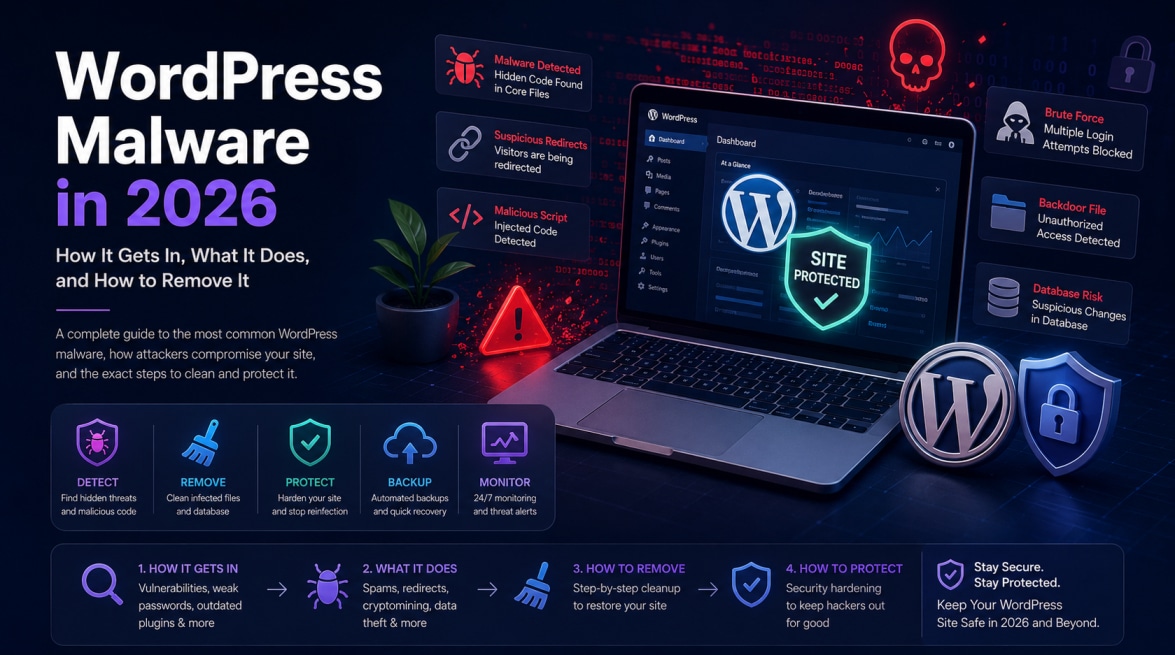
WordPress malware in 2026 is more sophisticated than ever. The days of simple defacements, a hacker replacing your homepage with a political message, are largely over. Modern WordPress malware is designed to be invisible: to avoid detection by site owners, to evade security scanners, and to persist through cleanup attempts.
The three dominant malware families in 2025–2026, Japanese SEO spam, jgalls, and Parrot TDS, all use cloaking techniques that serve different content depending on who is looking. Site owners see a clean site. Search engines see keyword-stuffed spam. Visitors get redirected to phishing pages. Automated security scanners often see nothing at all.
This guide explains how each type of malware works, how it gets into WordPress, and the exact process to remove it.
The 5 Most Common WordPress Malware Types in 2026
1. Japanese SEO Spam (Pharma Hack / SEO Poisoning)
Japanese SEO spam is the most common WordPress malware family in 2026. Attackers inject thousands of spam pages into your WordPress site, targeting competitive search terms, typically Japanese gambling keywords, pharma terms (Viagra, Cialis), or adult content.
How it works: malicious code creates hidden pages using your WordPress database or injects content into existing pages. These pages are only visible to search engine crawlers, not to regular visitors or to you as the site owner. Google indexes these pages, your site starts ranking for spam keywords, your domain reputation suffers, and eventually Google flags your site as spam.
Detection: search Google for site:yourdomain.com and look for pages in Japanese or with pharma-related titles. Check Google Search Console for any URLs you don’t recognise in the Coverage report.
2. Redirect Malware
Redirect malware sends your visitors to third-party sites, typically pharma websites, adult content, gambling sites, or phishing pages. The redirect is conditional: it activates only for visitors arriving from search engines (to avoid detection when you visit directly), only on mobile devices, only on a visitor’s first visit (to avoid triggering when the site owner visits repeatedly), or only at certain times of day.
This selective activation is what makes redirect malware so damaging, you can visit your own site dozens of times and see nothing wrong, while your search traffic is being systematically redirected to competitors or fraudsters.
Detection: visit your site by clicking a Google search result (not typing the URL). Test on a mobile device not in your browser history. Use a VPN to simulate a different geographic location. The Sucuri SiteCheck tool (sitecheck.sucuri.net) also performs external redirect detection.
3. Cryptomining Malware
Cryptomining malware runs JavaScript or server-side code on your WordPress site to mine cryptocurrency (typically Monero) using your visitors’ CPUs or your server’s resources. Browser-based mining was more common in 2020–2022; server-side mining is more prevalent in 2026.
Signs: your hosting CPU usage is consistently high even during low-traffic periods. Visitors on older devices may notice their fans spinning loudly or browsers becoming sluggish. Your hosting provider may warn you about abnormal CPU consumption.
4. Backdoor Files
Backdoor files are malicious PHP scripts installed on your server that give attackers persistent, ongoing access to your WordPress site, even after you change passwords, update plugins, and clean other malware. The attacker uses the backdoor to maintain access and can reinstall any other malware they choose at any time.
Backdoors survive standard cleanups because they’re often disguised as legitimate WordPress files, hidden in locations security scanners don’t check thoroughly (like /wp-content/uploads/), or named to look innocuous (thumb.php, image.php).
Signs: malware keeps coming back after you clean it. New admin users appear. Files you deleted reappear. These are strong indicators of a backdoor that survived your cleanup.
5. Memory-Resident Malware (Lock360 Family)
The most sophisticated and difficult-to-remove type of malware in 2026. Lock360 and similar memory-resident malware families execute malicious code directly in server memory rather than storing it in files on disk. When you clean the infected file (e.g., index.php), the memory-resident process immediately rewrites the malicious code back into the file.
Standard file-based cleanup tools can’t detect or remove memory-resident malware. If your site keeps getting reinfected within minutes or hours of cleaning, this is the likely culprit.
Resolution: memory-resident malware can’t be cleaned from the existing server. The site must be migrated to a fresh server environment with a clean WordPress installation and database.
How Malware Gets Into WordPress
| Attack Vector | How Common | How It Works |
|---|---|---|
| Vulnerable plugins/themes | Most common | Attackers exploit known unpatched vulnerabilities to upload files or execute code |
| Brute force login | Very common | Automated tools try thousands of password combinations until one works |
| Nulled (pirated) software | Very common | Pre-installed backdoors in pirated plugins and themes |
| Compromised admin credentials | Common | Stolen passwords from data breaches, phishing, or keyloggers |
| Outdated WordPress core | Less common | Exploiting known vulnerabilities in old WP versions |
| Supply chain attack | Emerging | A legitimate plugin is purchased by a bad actor who adds malware to an update |
| Shared hosting compromise | Possible | A neighbouring site on shared hosting is compromised and malware spreads |
The WordPress Malware Removal Process
| # | Action | How to Do It |
|---|---|---|
| 01 | Assess and document | Before deleting anything: take screenshots of what you’re seeing, download a complete site backup, and document the symptoms (when did it start, what are visitors experiencing, what does Google Search Console show). |
| 02 | Put the site in maintenance | Use Elementor’s Coming Soon mode or a maintenance mode plugin to take the site offline while you clean it. This protects visitors from being redirected or infected. |
| 03 | Change all credentials | Change WordPress admin passwords, hosting panel password, FTP/SFTP password, database password. Attackers often use compromised credentials to reinstall malware after cleanup. |
| 04 | Scan with Wordfence | Run a full Wordfence scan (Wordfence > Scan > Start New Scan). This compares all your files against known clean versions and flags: modified core files, modified plugin files, known malicious signatures, and suspicious files in /uploads/. |
| 05 | Scan with Sucuri SiteCheck | Visit sitecheck.sucuri.net and scan your domain. This performs an external scan — checking your site as Google and visitors see it, detecting redirects, blacklist status, and client-side malware that server-side scanners miss. |
| 06 | Reinstall WordPress core | Go to Dashboard > Updates > Reinstall version. This replaces all core WordPress files with fresh copies, eliminating any malware injected into core files. Your content and settings are preserved. |
| 07 | Reinstall all plugins | Deactivate all plugins. Delete each one. Reinstall from WordPress.org or from the official developer’s source. Do not reinstall from your existing files — they may be infected. |
| 08 | Replace theme files | Download a fresh copy of your theme from the developer. Replace all theme files — do not rely on your existing theme files being clean. |
| 09 | Clean the database | Use phpMyAdmin to check wp_options for any suspicious entries (particularly in option_name values you don’t recognise), and wp_users for any accounts you didn’t create. Malware sometimes stores configuration data or redirect rules in the database. |
| 10 | Harden before relaunching | Before taking the site live: implement all hardening steps (change login URL, enable 2FA, install Wordfence WAF, set up Patchstack monitoring, configure Cloudflare). A cleaned site without hardening will be reinfected rapidly. |
| 11 | Monitor for reinfection | For 30 days after cleanup, run weekly Wordfence scans, check Google Search Console for new Security Issues alerts, and monitor your site’s search appearance for any return of spam content. |
| 12 | Request Google review | If your site was flagged in Google Safe Browsing or Search Console: after cleanup, request a review in GSC > Security & Manual Actions > Security Issues > Request Review. Google typically processes these within 1–3 days. |
- If malware keeps returning within hours of cleanup, you're dealing with memory-resident malware or a persistent backdoor on your server. Standard cleanup won't work. You must migrate to a fresh server: export your database, move your wp-content/uploads folder (media files only, not any PHP files from uploads), and rebuild WordPress from scratch on a new server. don't copy any PHP files from the compromised server.
Prevention Is Cheaper Than Cleanup
A professional WordPress malware cleanup by a specialist agency costs ₹15,000–₹50,000 / $200–$600 depending on the complexity of the infection. A monthly maintenance retainer covering security monitoring, plugin updates, backups, and Wordfence management typically costs ₹3,000–₹8,000 / $40–$100 per month.
The math is straightforward: prevention costs less than recovery. And recovery doesn’t include the damage to your Google rankings, the loss of customer trust, or the regulatory consequences of a data breach affecting your users’ information.
- The three investments that prevent the vast majority of WordPress malware infections: (1) Keep all plugins and themes updated within 24 hours of security releases. (2) Use a web application firewall — Wordfence or Cloudflare. (3) Set up daily offsite backups with UpdraftPlus. Total annual cost: under ₹10,000 / $120.
We Protect WordPress Sites Before They Get Infected
Hopeleaf Technologies includes Wordfence configuration, Patchstack vulnerability monitoring, daily offsite backups, uptime monitoring, and priority bug fixing on all our maintenance retainers. 9+ years of WordPress security experience.
- Protect your WordPress site → hopeleaftechnologies.com/contact-us/
We Build Every Site in Elementor Pro
Hopeleaf Technologies is a specialist Elementor agency — we design in Figma and build in Elementor Pro on WordPress. Fast, editable, and built to rank on Google.