
Picture this: you’ve built a solid WordPress website for your business. It ranks well in your home country. But your Australian clients keep landing on your UK pricing page. Your French-speaking customers see your English homepage. And your SEO reports show that Google is treating your English (US) and English (UK) pages as duplicate content.
This is the Hreflang Tags problem — and it affects far more WordPress sites than most website owners realise. According to recent research, 75% of international websites have hreflang implementation errors. These errors cost you rankings, send users to the wrong pages, and suppress your pages from appearing in the right country’s search results.
The conventional fix — install WPML, Polylang, or TranslatePress — is like using a sledgehammer to hang a picture. These are powerful multilingual plugin suites that cost money, add significant complexity, and require you to restructure your site architecture. If all you need is to add hreflang tags, there’s a better way.
This post will show you exactly how to add hreflang tags to any WordPress site in under 5 minutes — without any translation plugin, without touching a line of code, and without paying for anything.
What Are Hreflang Tags and Why Do They Matter in 2026?
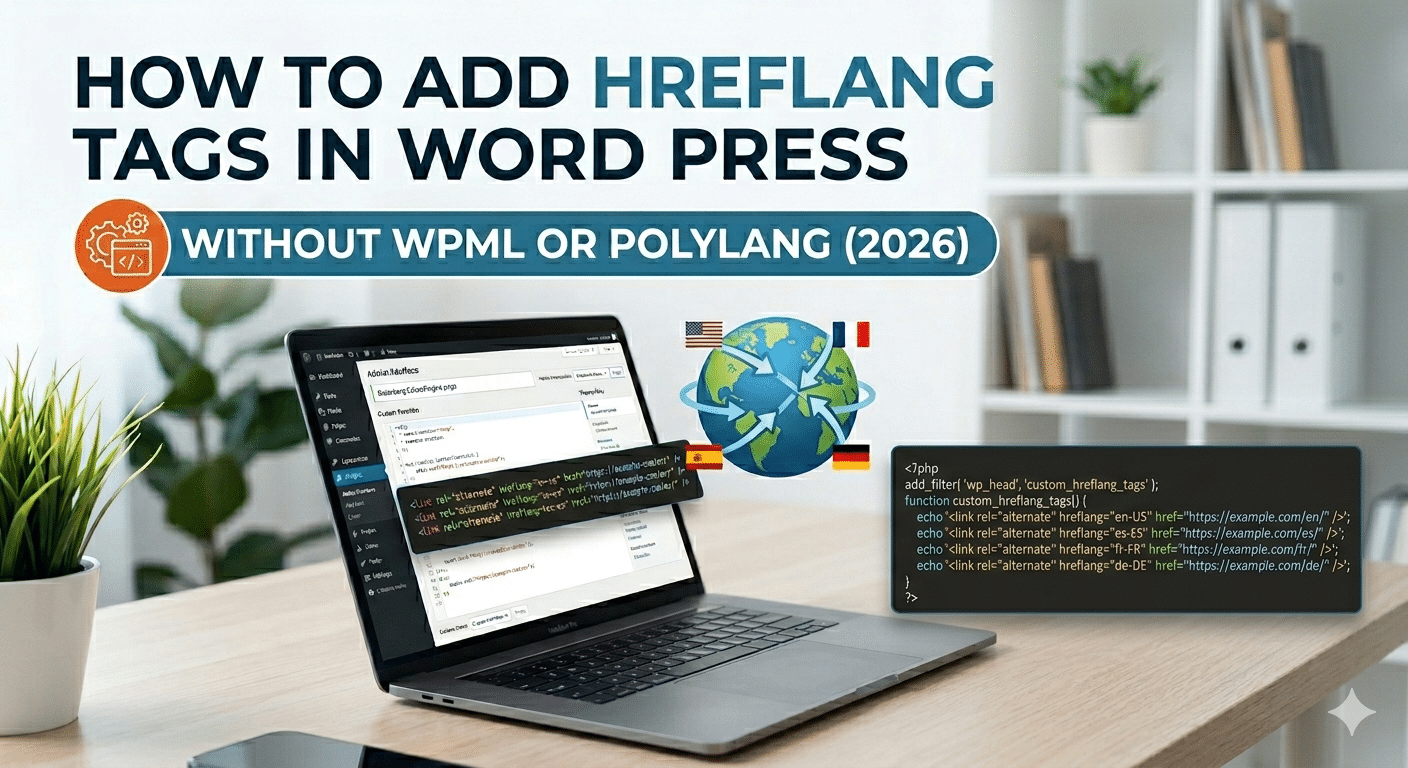
Hreflang tags are HTML link elements that live in your WordPress site’s <head> section. They tell Google, Bing, and Yandex exactly which language and geographic region each version of your page is intended for. Think of them as a GPS for search engines — directing the right version of your content to the right audience, in the right country.
The structure is straightforward. A hreflang tag looks like this:
					<!-- Language + Region targeting -->

    <link rel="alternate" href="https://yoursite.com/about/" hreflang="en-AU" />

    <link rel="alternate" href="https://yoursite.com/about/" hreflang="en-GB" />

    <link rel="alternate" href="https://yoursite.com/about/" hreflang="en-US" />

    <link rel="alternate" href="https://yoursite.com/" hreflang="x-default" />
Each tag uses a two-letter ISO language code (en, fr, de, es) optionally paired with a two-letter ISO country code (AU, GB, US, BE, FR). This gives you precise targeting: en-AU targets English speakers in Australia, fr-BE targets French speakers in Belgium, zh-TW targets Traditional Chinese speakers in Taiwan.
Why Hreflang Tags Matters More Than Ever in 2026
International SEO has become significantly more competitive since 2024. More businesses are expanding across borders. More WordPress sites are serving multiple regions with the same language. Without Hreflang Tags correctly implemented, three things happen:
- Duplicate content penalties — Google sees your en-US and en-AU pages as identical content competing against each other
- Wrong page in wrong market — your US pricing page ranks in Australia because Google doesn’t know there’s a separate AU version
- Keyword cannibalisation — your own pages compete against each other for the same search queries across different regions
- 75% of international websites have hreflang errors. This means getting it right is one of the highest-ROI technical SEO fixes available for multi-regional WordPress sites.
The Problem With Existing WordPress Hreflang Solutions
When you search for ‘add hreflang tags WordPress’, most results point you to one of three solutions. Here’s the honest reality of each.
| Solution | Cost | Complexity | What You’re Actually Getting |
|---|---|---|---|
| WPML | $39–$199/year | High | A full multilingual CMS — translation management, language switchers, content duplication workflows. Hreflang is one of dozens of features. |
| Polylang | Free/$99/year | Medium | Again, a full multilingual system. The free version has limited hreflang support. Polylang Pro is required for proper implementation. |
| TranslatePress | $79–$299/year | Medium-High | Translation interface built on top of WordPress. More hreflang control in higher tiers. Still far more than you need if all you want is hreflang tags. |
| Manual Code (header.php) | Free | High | Hard-coded tags in your theme’s header.php. Works until your theme updates and overwrites the file. Maintenance nightmare. |
| Hreflang Customizer | 100% Free | Low | A single-purpose plugin that outputs hreflang tags and nothing else. Install, select languages, save. Done in 5 minutes. |
The pattern is clear: existing solutions treat Hreflang Tags as a feature inside a much larger and more expensive product. If you don’t need full multilingual translation management — if you just need to correctly signal to Google which language and region your existing pages target — you’ve been over-engineered into paying for tools you don’t use.
Introducing Hreflang Tags Customizer — The Lightweight Free Solution
Hreflang Tags Customizer is a free WordPress plugin built by Jaimish Saliya at Hopeleaf Technologies. It does one thing: outputs correct hreflang tags in your WordPress site’s head. Nothing more. Nothing less.
It’s available on the official WordPress.org plugin directory at no cost, with no premium tier, no feature gating, and no upsells. It was built because we needed it on our own client projects and no existing free plugin solved the problem cleanly.
Key Plugin Details
| Detail | Information |
|---|---|
| Plugin Name | Hreflang Customizer |
| Author | Jaimish Saliya (Hopeleaf Technologies) |
| Version | 1.1.0 (May 2026) |
| Price | 100% Free — no premium tier |
| WordPress.org Rating | 5 out of 5 stars |
| WordPress Compatibility | 5.8 or higher |
| PHP Compatibility | 7.0 or higher |
| Tested Up To | WordPress 6.9.4 |
| Translation Plugin | Not required — works standalone |
| Optional Integration | Weglot (auto-detected) |
| Languages Supported | 180+ |
| Licence | GPL v2 — open source |
- Download free at: wordpress.org/plugins/hreflang-customizer/
Hreflang Tags Customizer Features — Full Breakdown
1. Standalone Mode — No Translation Plugin Required
This is the feature that makes Hreflang Tags Customizer genuinely different. You do not need WPML, Polylang, TranslatePress, or any other translation plugin installed. The plugin works independently — you select your target language and regional codes in the settings page, and it outputs one hreflang tags per selected code on every page of your site, pointing to that page’s canonical URL.
This is the correct implementation for the most common hreflang use case: a WordPress site that already serves its content in a specific language, wants to target multiple English-speaking markets (for example, en-AU, en-GB, and en-US), and needs to tell Google which regions it’s targeting without building a full multilingual infrastructure.
- Standalone mode covers the 'same language, multiple regions' scenario — by far the most common hreflang need for English-language businesses serving international markets.
2. Weglot Integration — Automatic Translated URL Mapping
If you use Weglot for translation, Hreflang Tags Customizer detects it automatically and switches to Weglot mode. In this mode, it reads Weglot’s translated page URLs and maps them to your selected Hreflang Tags codes — so your French translated page correctly receives hreflang=’fr’ pointing to the French URL, not the English canonical.
Zero manual configuration. The plugin handles the mapping automatically as long as Weglot is installed and active.
3. Searchable Language Picker — 180+ Languages and Regional Variants
The settings page features a searchable, responsive language picker with over 180 language and regional variant codes. Type ‘en-AU’, ‘fr-BE’, ‘de-CH’, or ‘zh-TW’ — the correct code appears immediately. Selected languages appear as removable badge chips in a sidebar panel, showing you exactly what will be output in your site’s head before you save.
This eliminates the most common Hreflang Tags implementation error: using the wrong language code. The ISO 639-1 / ISO 3166-1 standard has specific codes for every language-region combination — for example, the country code for the United Kingdom is GB, not UK. The picker uses the correct codes throughout.
- Common mistake: using 'en-UK' instead of 'en-GB'. The UK is not a valid ISO 3166-1 country code. Google will ignore the tag. Hreflang Customizer's picker only shows valid codes, so this error is impossible.
4. x-default Support
x-default is the Hreflang Tags value that tells Google which page to show when no other language or region code matches the user’s browser settings. It’s an essential part of any proper international Hreflang Tags implementation, and it’s included in Hreflang Tags Customizer as a standard selectable option.
When x-default is selected, the plugin outputs a tag pointing to your site’s home URL — the correct implementation according to Google’s official Hreflang Tags documentation.
5. Cached Language List — Zero Frontend Performance Impact
The extended language list is fetched from a remote API at most once every 12 hours and cached locally using the WordPress Transients API. There are no repeated API calls on page load. The plugin adds zero weight to your frontend — no CSS, no JavaScript, no database queries on the visitor-facing side. The hreflang tags output is a handful of lightweight link elements in the head.
6. Static 180+ Language Fallback
If the optional remote language API is unreachable — due to a server issue, a network restriction, or Cloudflare blocking the request — the plugin automatically falls back to its built-in list of 180+ languages. Your hreflang tags keep working regardless. This is not a degraded mode — the fallback list covers all the codes most WordPress sites will ever need.
7. WordPress.org Security Compliant
All user inputs are sanitised, validated, and escaped throughout the plugin codebase. The plugin passes WordPress.org’s Plugin Check (PCP) tool and complies with WordPress coding standards. No raw database queries, no unescaped output, no third-party scripts loaded without disclosure. It was submitted to and reviewed by the WordPress.org plugin review team before being accepted into the official directory.
How to Install and Configure Hreflang Tags Customizer — Step by Step
Step 1 — Install from WordPress.org
In your WordPress admin, go to Plugins > Add New. Search for ‘Hreflang Customizer’. Click Install Now, then Activate. The plugin appears immediately in your admin sidebar under Hreflang > Settings.
Alternatively: download the zip from wordpress.org/plugins/hreflang-customizer/ and upload via Plugins > Add New > Upload Plugin.
Step 2 — Open the Settings Page
Go to Hreflang > Settings in your WordPress dashboard. You’ll see a clean, two-column interface: a searchable language grid on the left and a selected language tag panel on the right.
Step 3 — Search and Select Your Target Languages
Use the search field to find the language and regional codes you need. For an Australian business targeting the Australian, UK, and US markets, you would search for and select: en-AU — English (Australia) en-GB — English (United Kingdom) en-US — English (United States) Each selected language appears as a removable chip in the sidebar, showing the Hreflang Tags code badge. You can remove any selection by clicking the × on its chip.
Use the search field to find the language and regional codes you need. For an Australian business targeting the Australian, UK, and US markets, you would search for and select:
- en-AU — English (Australia)
- en-GB — English (United Kingdom)
- en-US — English (United States)
Each selected language appears as a removable chip in the sidebar, showing the hreflang code badge. You can remove any selection by clicking the × on its chip.
Step 4 — Add x-default (Recommended)
If your site serves an international audience, select x-default from the picker. This designates your homepage as the fallback page for visitors whose browser language doesn’t match any of your other Hreflang Tags codes. Google recommends implementing x-default on all international sites.
Step 5 — Save and Verify
Click Save Languages. The hreflang tags will appear in your site’s head immediately — on every page, automatically, from this moment forward.
To verify: view the source of any page (Ctrl+U / Cmd+U) and search for ‘hreflang’. You’ll see the output link tags in the head section. You can also check using Google Search Console’s International Targeting report, or paste any page URL into a free Hreflang Tags validator tool.
- Total setup time: under 5 minutes. No developer needed. No translation plugin required. No premium subscription.
Hreflang Tags Common Mistakes — And How This Plugin Prevents Them
Hreflang tags have a reputation for being easy to get wrong. Research consistently shows that the majority of sites with Hreflang Tags have errors in their implementation. Here are the most common mistakes — and how Hreflang Tags Customizer prevents each one.
Mistake 1 — Using Invalid Language or Country Codes
The hreflang attribute requires ISO 639-1 language codes (en, fr, de) optionally paired with ISO 3166-1 alpha-2 country codes (AU, GB, US). The most common errors: using ‘en-UK’ instead of ‘en-GB’, using ‘en-AUS’ instead of ‘en-AU’, or using a three-letter language code instead of two letters.
Prevention: Hreflang Customizer’s picker only displays valid, correctly formatted codes. You can’t type in an invalid code — the search only returns entries from the validated language database.
Mistake 2 — Missing Reciprocal Tags
Every page that contains a hreflang tag must also be referenced by all the other pages in the same hreflang group. If your English-AU page references en-AU, en-GB, and en-US, then your English-GB and English-US pages must also reference all three. Missing reciprocal tags cause Google to ignore the entire hreflang set.
Prevention: In standalone mode, Hreflang Customizer outputs the selected hreflang tags on every page of your site simultaneously — meaning every page already has the complete set of reciprocal tags without any additional configuration.
Mistake 3 — Forgetting x-default
Many implementations specify hreflang codes for their target regions but omit x-default, leaving Google without a defined fallback for users from non-targeted regions. This causes Google to guess — which often means showing the wrong page version to users from unexpected locations.
Prevention: x-default is a standard selectable option in Hreflang Customizer, presented alongside all other language codes in the picker. The settings page includes a note explaining what x-default does and why it’s recommended.
Mistake 4 — Adding Hreflang to Only the Homepage
Hreflang tags must appear on every page that has a language/region variant — not just the homepage. A common shortcut is to add hreflang only to the homepage, which does almost nothing for internal pages like service pages, product pages, or blog posts.
Prevention: Hreflang Customizer outputs the configured hreflang tags on every page of the site automatically — homepage, inner pages, posts, custom post types. No page-by-page configuration required.
Mistake 5 — Hard-Coding Tags in header.php
Adding hreflang tags directly to your theme’s header.php file is technically correct but practically dangerous. When your theme updates, the header.php file is overwritten and your hreflang tags disappear without any warning. You may not notice until you check Google Search Console weeks later.
Prevention: Hreflang Customizer stores your language settings in the WordPress database and injects the tags via a WordPress hook — meaning they survive theme updates, theme switches, and site migrations completely intact.
Who Should Use Hreflang Customizer?
Hreflang Customizer is the right solution for specific use cases. It’s not intended to replace WPML or Polylang for sites that genuinely need full multilingual translation management. Here’s a clear breakdown:
| Your Situation | Right Tool |
|---|---|
| English site targeting AU, UK, US — same content, different regions | Hreflang Customizer |
| One-language site targeting multiple countries | Hreflang Customizer |
| Using Weglot for translation, need correct hreflang output | Hreflang Customizer + Weglot |
| WordPress developer wanting a lightweight hreflang solution | Hreflang Customizer |
| Site with no international traffic or multi-region targeting | No hreflang needed |
| Full multilingual site needing content translation + management | WPML or Polylang |
| E-commerce with product pages in 5+ languages | WPML or TranslatePress |
The sweet spot for Hreflang Customizer is the very common scenario of an English-language business operating across multiple English-speaking markets — India, Australia, UK, USA, Canada — where the content is not translated but the geographic targeting needs to be precise.
Verifying Your Hreflang Implementation Is Working
After installing and configuring Hreflang Customizer, use these free tools to verify your tags are correctly output and recognised by Google:
Method 1 — View Page Source
Open any page on your site and press Ctrl+U (Windows) or Cmd+U (Mac) to view the page source. Press Ctrl+F and search for ‘hreflang’. You should see your configured tags in the head section. This is the fastest verification method.
Method 2 — Google Search Console International Targeting Report
In Google Search Console, go to Legacy Tools and Reports > International Targeting. This report shows hreflang errors detected by Google’s crawler. After adding your tags, allow 1–2 weeks for Google to recrawl your site and update the report. Common errors flagged here include: return tag errors (missing reciprocal tags), no return tag found, and invalid language codes.
Method 3 — Screaming Frog SEO Spider
Screaming Frog (free for up to 500 URLs) crawls your site and reports on hreflang implementation in the Hreflang tab. It checks for: missing self-referencing tags, inconsistent tag sets across pages, invalid language codes, and pages returning 404 errors that are referenced in hreflang tags.
Method 4 — Ahrefs or Semrush Site Audit
Both Ahrefs Site Audit and Semrush Site Audit include dedicated hreflang checks. If you already use either tool, run a full site audit after installing Hreflang Customizer and filter the issues by ‘hreflang’ to see any remaining errors.
- Most hreflang errors are invisible in normal site browsing — they only surface in crawl tools or Google Search Console. Even a perfectly configured plugin should be verified with at least one of the methods above after launch.
Frequently Asked Questions
After installing and configuring Hreflang Customizer, use these free tools to verify your tags are correctly output and recognised by Google:
Do I need WPML or any paid plugin to use Hreflang Customizer?
No. Hreflang Customizer works in standalone mode with zero dependency on any translation plugin. Just install, configure, and save. If you also use Weglot, it integrates automatically.
Will this plugin slow down my WordPress site?
No. The plugin has zero frontend performance impact. All processing is server-side, the language list is cached via WordPress Transients, and no CSS or JavaScript is loaded on visitor-facing pages. The only output is a few lightweight link elements in the HTML head.
What is x-default and do I need it?
x-default designates a fallback page for visitors whose browser language doesn't match any of your other hreflang codes. Google recommends it for all international sites. When you select x-default in Hreflang Customizer, it outputs a tag pointing to your site's homepage as the fallback URL.
Does the plugin work on WordPress Multisite?
The plugin has been tested on standard WordPress installs and functions correctly. WordPress Multisite compatibility is on the roadmap and will be addressed in a future release. For now, it can be network-activated but should be configured per-site in the individual site admin.
What Which translation plugins are planned for future support? does Hopeleaf offer?
Currently, standalone mode and Weglot are fully supported. WPML, TranslatePress, and Polylang integration is planned for a future release. Follow the plugin's changelog on WordPress.org for updates.
Is the plugin free forever?
Yes. Hreflang Customizer is and always will be completely free, open source, and available on WordPress.org. There is no paid version planned. If you find it useful and want to support further development, you can make a voluntary donation at ko-fi.com/jemssaliya — but this is entirely optional.
International SEO in 2026 — Why Getting Hreflang Right Matters More Than Ever
The case for correct hreflang implementation has strengthened significantly in 2026. Google’s international search results have become more market-specific, not less. The gap between a site with correct hreflang and one without has widened — especially in competitive markets where organic rankings directly translate to qualified leads and revenue.
Three trends are driving this:
1. More Businesses Are Going Multi-Regional
Post-pandemic, a larger proportion of small and medium businesses are serving international clients. An Indian agency with clients in Australia and Belgium, a UK consultant working with US corporations, an Australian product brand selling to SE Asia — these cross-border arrangements now represent a significant share of SME revenue. Each one needs hreflang implemented correctly.
2. Google Is Getting Stricter About Duplicate Content
Two pages in English — one targeting Australia, one targeting the UK — that share 90% of their content are increasingly being flagged by Google’s duplicate content detection. Without hreflang, Google has to guess which one to rank for which market. With hreflang, you tell Google directly, and both pages can rank in their respective markets simultaneously.
3. AI-Generated Content Has Made Multi-Regional Sites More Common
The widespread adoption of AI writing tools in 2024–2025 has made it faster than ever to produce localised content variants. Sites that previously had one page per topic now have regional variants — and those regional variants need hreflang to be correctly interpreted by search engines.
- The SEO opportunity: most of your competitors haven't fixed their hreflang. Getting it right — in a morning, with a free plugin — gives you a clean, permanent technical edge in every market you target.
The Hopeleaf Workflow: How We Use Claude in Our Agency
If you’re a business owner looking to hire a WordPress agency in 2026, the most capable agencies are now using Claude and similar AI tools to work faster on the early-stage, repeatable parts of a project — content outlines, meta tags, copy drafts, schema markup — while applying specialist human expertise to the things that actually require it: Elementor builds, plugin configuration, performance optimisation, and QA.
A good agency using AI well will deliver your project faster without cutting corners on quality. A less experienced agency using AI poorly will paste Claude’s output directly into WordPress and hand you a site full of mismatched copy, generic layouts, and unoptimised performance.
The question to ask any agency you’re considering: ‘How do you use AI tools in your workflow?’ The honest, confident answer will tell you everything you need to know about their technical maturity.
- AI accelerates the workflow. WordPress and Elementor expertise determines the outcome. You need both.
Summary — What You've Learned
- Hreflang tags tell Google which language and region each page targets — preventing duplicate content issues and ensuring the right page ranks in the right market
- 75% of international sites have hreflang errors — making correct implementation a significant competitive advantage
- WPML, Polylang, and TranslatePress are powerful tools, but excessive for sites that only need hreflang tags without full translation management
- Hreflang Customizer is a free, lightweight WordPress plugin that adds hreflang tags to any site — in standalone mode, without any translation plugin
- It supports Weglot integration, 180+ language codes, x-default, a cached language list, a static fallback, and WordPress.org security compliance
- Installation takes under 5 minutes. Verification takes another 2 minutes via view-source or Google Search Console
- In 2026, getting international SEO right — starting with hreflang — is one of the highest-ROI technical SEO tasks available for multi-regional WordPress sites
Download Hreflang Customizer — Free on WordPress.org
Built by Hopeleaf Technologies. Works without WPML or Polylang. Supports 180+ language codes, Weglot integration, and x-default. 5-minute setup. 100% free, forever.
- Download Free → wordpress.org/plugins/hreflang-customizer/
Need Help with International SEO for Your WordPress Site?
Hopeleaf Technologies is a WordPress and Elementor specialist agency. We build and optimise WordPress sites for international audiences — including full hreflang configuration, RankMath SEO setup, and Core Web Vitals optimisation. Based in Surat, India. Serving clients worldwide.
- Get in touch: hopeleaftechnologies.com/contact-us/
We Build Every Site in Elementor Pro
Hopeleaf Technologies is a specialist Elementor agency — we design in Figma and build in Elementor Pro on WordPress. Fast, editable, and built to rank on Google.